


DustClear Go
4.61.00 Reviews
App Specs
- Version
- 1.0.4
- Updated On
- License
- Free
- Downloads
- 10,000+
- Developer
- Euro UK
- Categories
- Tools
- Platform
- Android
Screenshots

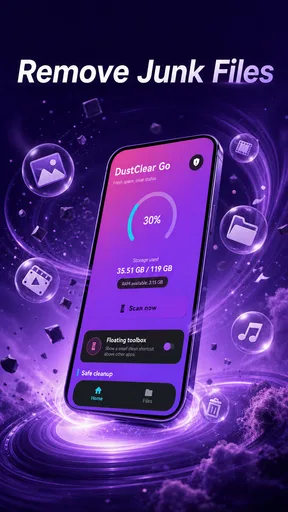

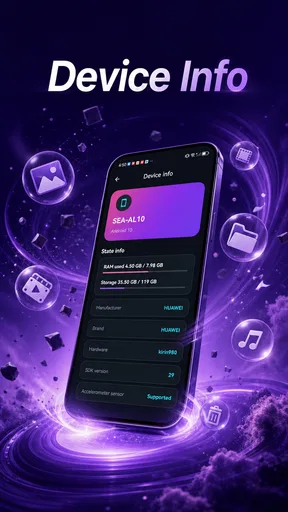
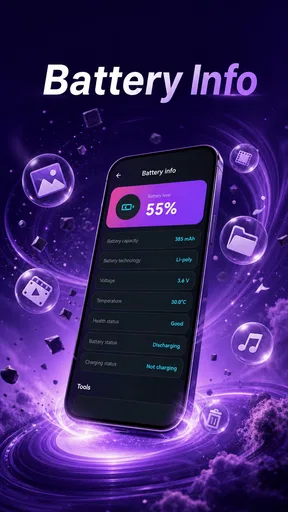
 Analysis by AppCompare
DustClear Go is the kind of small utility I would keep around for quick device checks rather than treat as a complete maintenance suite. Developed by Euro UK, this free Tools app brings cached-data checking together with device and battery details in one straightforward place. That combination is useful when I want a quick snapshot before deciding whether a cleanup step is actually necessary.
My first impression is that it aims to reduce the usual wandering through Android settings. Instead of opening several menus to inspect storage-related cache information, hardware details, and battery status, I can use one focused tool as a starting point. It is not trying to replace every system utility, and that is important to understand before installing it. Its value comes from making a repeatable check easier, not from promising a dramatic transformation of the phone.
DustClear Go is available free of charge, carries an Everyone age rating, and has reached over ten thousand installs. Its average rating is 4.6 from around sixteen ratings, which suggests a positive early response, although the small rating base means I would treat that number as an initial signal rather than a final verdict. The app is currently at version 1.0.4 and requires Android 10 or newer.
How I use it as a simple device-check routine
I use DustClear Go as a quick checkpoint, not as a reason to change settings automatically. That distinction keeps the routine useful: I first decide what I’m trying to understand, then check only the relevant information and compare it with Android’s own controls when a decision matters. It also makes the next step clearer, which is why I look at a few settings before settling into a repeatable habit.
Starting with a baseline instead of cleaning blindly
The most useful habit is to open the app before doing anything else and treat the first screen as a baseline. I check the cached-data information, then look at the device details and battery section. This order matters because it separates observation from action. If the phone feels slow, I can first see whether there is a cache-related reason worth investigating instead of repeatedly tapping a cleanup command out of frustration.
That approach is especially helpful on a phone shared with family members. A relative might say that the device is “full” or “running hot,” but those descriptions can point to very different problems. A cache check may be relevant to storage clutter, while battery details are more useful when the complaint is short runtime. Device information gives context when I need to identify the phone before searching for troubleshooting steps.
I also prefer checking after a normal day of use rather than immediately after restarting the phone. A fresh restart can make a device feel better for reasons unrelated to cache, while a normal-use snapshot gives me a more realistic reference. DustClear Go works best in that role: a quick inspection point that helps me decide what to do next.
Worth Reading Before You Choose

Flipboard Shows What News Apps Must Do Beyond the Feed

Switching to Android Auto Means Rethinking Your Driving Routine

Google Calendar Makes a Crowded Week Easier to Manage

Ludo King Makes the Most of the Minutes Between Plans

Baby Panda World Brings Quick Play to Modern Phones, but Its Game Library Feels Busy

ESPN’s Live Game View Makes Following Close Games Easier
A practical everyday scenario
Imagine that I am preparing for a long train journey. The phone has been used for navigation, music, messages, and photos, and I want to make sure the battery situation is clear before leaving. I open the app, review the battery details, and check the cached-data information. If everything looks ordinary, I avoid unnecessary cleaning and simply charge the phone or reduce demanding usage. If something looks worth investigating, I have a clearer starting point than I would get from guessing.
This is a modest workflow, but it prevents a common mistake: assuming that every performance complaint is caused by temporary files. Clearing cache can sometimes help a particular app, yet it can also remove temporary data that the app will recreate later. The more useful question is not “Can I clear something?” but “What problem am I trying to solve?” The app encourages that more measured approach because it puts checking before intervention.
What the app is best at showing me
Its strongest role is consolidation. Device and battery information often lives in different areas of Android, and cached-data information can be easy to overlook when I am troubleshooting quickly. Having these topics together saves small amounts of time repeatedly, which is exactly where a utility like this earns its place.
I would recommend it to someone who wants a simple reference tool, especially if they regularly help other people with Android phones. It can make a support conversation more concrete: instead of asking someone to describe a battery screen from memory, I can guide them toward a single app that presents the relevant checks together. That does not make the diagnosis automatic, but it makes the first exchange less confusing.
Settings and permissions I would review carefully
Because this is a focused utility, I would not expect a long configuration process to be the main attraction. My advice is to open the app’s available options and Android’s own app settings after installation, then confirm that the behavior matches what I want. In particular, I would check whether it offers any preferences related to refresh behavior, notifications, or display choices before assuming that it will operate silently in the background.
This is less about changing a hidden performance switch and more about keeping control. A tool that reports battery information does not need to become another source of battery use through unnecessary background activity. If the app presents information only when opened, that is a good fit for occasional checks. If any optional alert or recurring behavior appears, I would enable it only when I have a clear reason.
I would also keep Android’s system battery and privacy controls in mind. The system settings remain the authoritative place for permissions, battery optimization, storage management, and app-specific controls. DustClear Go is a convenient layer for inspection, but it should not be treated as a replacement for the operating system’s own controls. When the app and Android present different levels of detail, I would use the system screen for the final decision.
Why a repeatable habit is more useful than constant cleaning
Experienced users tend to get better results from consistency than from aggressive maintenance. I would use DustClear Go at a few sensible moments: after installing several large apps, when storage warnings begin appearing, before a trip, or when battery behavior changes noticeably. I would not open it every few minutes or clear cached information simply because the number looks large.
A simple note can make the checks more meaningful. I might record the date, the general battery condition, and what I was doing when the phone felt slow. There is no need to build a complicated spreadsheet. The point is to compare like with like. A battery check after heavy navigation is not directly comparable with one taken after an idle night, and a cache check immediately after clearing data tells me little about longer-term buildup.
This habit also helps separate temporary symptoms from repeatable problems. If the same issue returns after ordinary use, I can investigate the specific app involved, update it, or use Android’s app settings. If it happens only once, I may decide that no action is needed. DustClear Go cannot make that judgment for me, but it gives me a consistent place to begin.
Faster patterns for people who check several phones
If I am the person others call when a phone behaves strangely, I would use the app as a triage step. I would ask three questions before opening it: Is the complaint about space, battery life, or overall device behavior? Has anything changed recently? Does the problem happen all the time or only with one app? Then I would use the relevant part of DustClear Go rather than browsing every detail without a purpose.
That prevents information overload. For a storage complaint, I would start with cached data and then move to Android’s storage screen if a deeper breakdown is needed. For a battery complaint, I would inspect the battery details and then compare them with the system’s battery-usage view. For an identification problem, device details can help me confirm which handset I am dealing with before giving model-specific advice.
A useful shortcut is to make the app part of a fixed sequence: inspect, identify the likely category of problem, verify in Android settings, and only then change something. This sequence is faster than repeatedly trying random cleaners. It also makes it easier to undo a mistake because I know which change came immediately before the behavior changed.
Where it differs from the usual alternatives
Android already includes tools for storage, battery, and device information, so the comparison is unavoidable. The built-in settings are generally the better choice when I need detailed app-by-app storage figures, battery consumption history, permission management, or system-level actions. They are also the place I trust most for changes that affect how the phone works.
DustClear Go makes more sense when I want a compact overview without moving through several settings categories. Compared with broad “phone booster” apps, its focused purpose is a strength. I would rather use a tool that helps me inspect cached data and device status than one that encourages constant task killing or makes sweeping claims about speed. The trade-off is that a focused app cannot provide every advanced control found in Android itself.
Compared with a file manager, it is less suitable for finding large videos, downloads, duplicate files, or forgotten documents. Compared with a dedicated battery-monitoring tool, it may not be the right choice for long-term graphs or detailed historical analysis. Those alternatives are better when the problem demands deep investigation. DustClear Go is better when the first question is simply, “What is the current state of this phone?”
Limits I would keep in mind
The app should not be mistaken for a guaranteed speed booster. Cached data is not automatically harmful, and clearing it does not repair a worn battery, remove large personal files, or fix a failing component. If the phone is slow because of limited memory, an overloaded app, an operating-system issue, or aging hardware, a cache check may only confirm that the real problem lies elsewhere.
There is also a limit to what a summary can tell me. A battery detail can describe the current situation, but it does not by itself explain every sudden drop in percentage. I still need to consider screen brightness, mobile signal, location use, background activity, temperature, and the particular apps running at the time. Likewise, device information can identify the handset, but it cannot diagnose every software conflict.
Another practical limitation is that the app’s small early user base means I would be cautious about relying on it for a critical support process without checking Android’s own screens as well. The positive average rating is encouraging, but a handful of ratings cannot cover every phone model or usage pattern. For ordinary personal checks, that is not a serious concern; for managing many devices, I would want a longer track record and more specialized controls.
Who should install it, and who should skip it
I think DustClear Go suits people who want a lightweight way to inspect cached data, battery details, and device information without treating their phone like a project that needs constant optimization. It is also a reasonable choice for family tech support, quick pre-travel checks, and users who prefer a repeatable checklist over scattered settings menus.
I would skip it if I am looking for a full file-cleaning system, detailed battery history, automated optimization, or a tool that can explain exactly why an app is crashing. In those cases, Android’s built-in controls or a specialist utility will be more appropriate. I would also avoid installing any maintenance app with the expectation that it can restore an old battery or create storage out of nowhere.
For newer Android users, the app can provide a gentler entry point into device maintenance. For experienced users, its usefulness depends on discipline: open it to answer a specific question, compare the result with the system when needed, and avoid turning every cache figure into an emergency. That is where the app feels most sensible.
My final assessment after building a routine around it
DustClear Go is a practical, narrow tool rather than a magical cleaner. I like the way its purpose can fit into a short routine: check cached data, review the battery, confirm the device details, and then decide whether Android’s deeper settings are needed. That workflow gives the app a clear job and keeps expectations realistic.
The free price and Everyone rating make it easy to try, while support for Android 10 and newer covers a broad range of relatively modern devices. Euro UK has kept the idea easy to understand, and the current version gives users a compact way to begin a device check without digging through several menus first.
My strongest recommendation is to use it as an inspection habit, not as a button you press whenever the phone feels slow. If you want a quick overview and appreciate a focused utility, it is worth considering. If you need deep diagnostics, file management, or detailed battery history, choose the system tools or a specialist app instead. Used within those boundaries, DustClear Go is a useful first step that helps me make calmer, better-informed maintenance decisions.
Pros
- Quickly identifies large files and unused apps to free up storage.
- Simple interface makes storage cleanup easy for beginners.
- Useful duplicate-file detection reduces unnecessary clutter.
- Shows storage categories clearly before deleting anything.
- Cleanup suggestions can help maintain a more organized device.
Cons
- Some cleanup features may require in-app purchases.
- Scanning can take time on devices with extensive file libraries.
- Results may need manual review to avoid deleting important files.
- Performance can vary depending on device age and storage space.
- Frequent permission requests may concern privacy-conscious users.
FAQs for DustClear Go
What is DustClear Go and what does it do?
DustClear Go is presented as a mobile cleaning and device-optimization app designed to help users review storage usage, identify unnecessary files, and manage space more conveniently. Before downloading, keep in mind that the exact tools can vary by Android or iOS version. Its usefulness depends on how much control your phone already provides for deleting temporary files, duplicate items, downloads, and other unwanted data.
Is DustClear Go safe to install and use?
As with any utility that requests access to device storage, you should review DustClear Go’s permissions carefully during installation. A cleaning app may need access to photos, videos, files, or other storage categories to scan for removable content. Download it only from the official Google Play Store or Apple App Store, check the developer information and privacy policy, and avoid approving permissions that do not appear necessary for its advertised features.
Can DustClear Go really improve phone performance?
DustClear Go may help free storage by locating files you no longer need, which can make a device feel less cluttered and may help when storage is nearly full. However, it should not be considered a guaranteed speed booster. Modern Android and iOS systems manage memory automatically, so deleting files will not always produce a noticeable performance improvement. Review every suggested item before confirming removal.
Does DustClear Go delete photos, videos, or important files automatically?
You should never assume that a cleaning application will protect every file automatically. Depending on the version and selected tools, DustClear Go may identify duplicate, large, temporary, or unwanted files for deletion. Carefully inspect scan results before using any cleanup button, especially when personal photos, downloaded documents, messages, or work files are involved. Keep an independent backup of important data before performing a large cleanup.
Is DustClear Go free, and does it include subscriptions or in-app purchases?
The availability of free features, advertising, premium tools, and subscription options can differ according to the platform and app version. Before starting a trial or confirming payment, open the store listing and read the pricing details, renewal terms, and cancellation instructions. If DustClear Go offers premium cleaning or privacy features, confirm what is included in the free version so you are not surprised by recurring charges.


